
Group Chats
Your bot can participate in Telegram group conversations. In groups, users mention or tag the bot to interact with it — it won’t respond to every message by default.
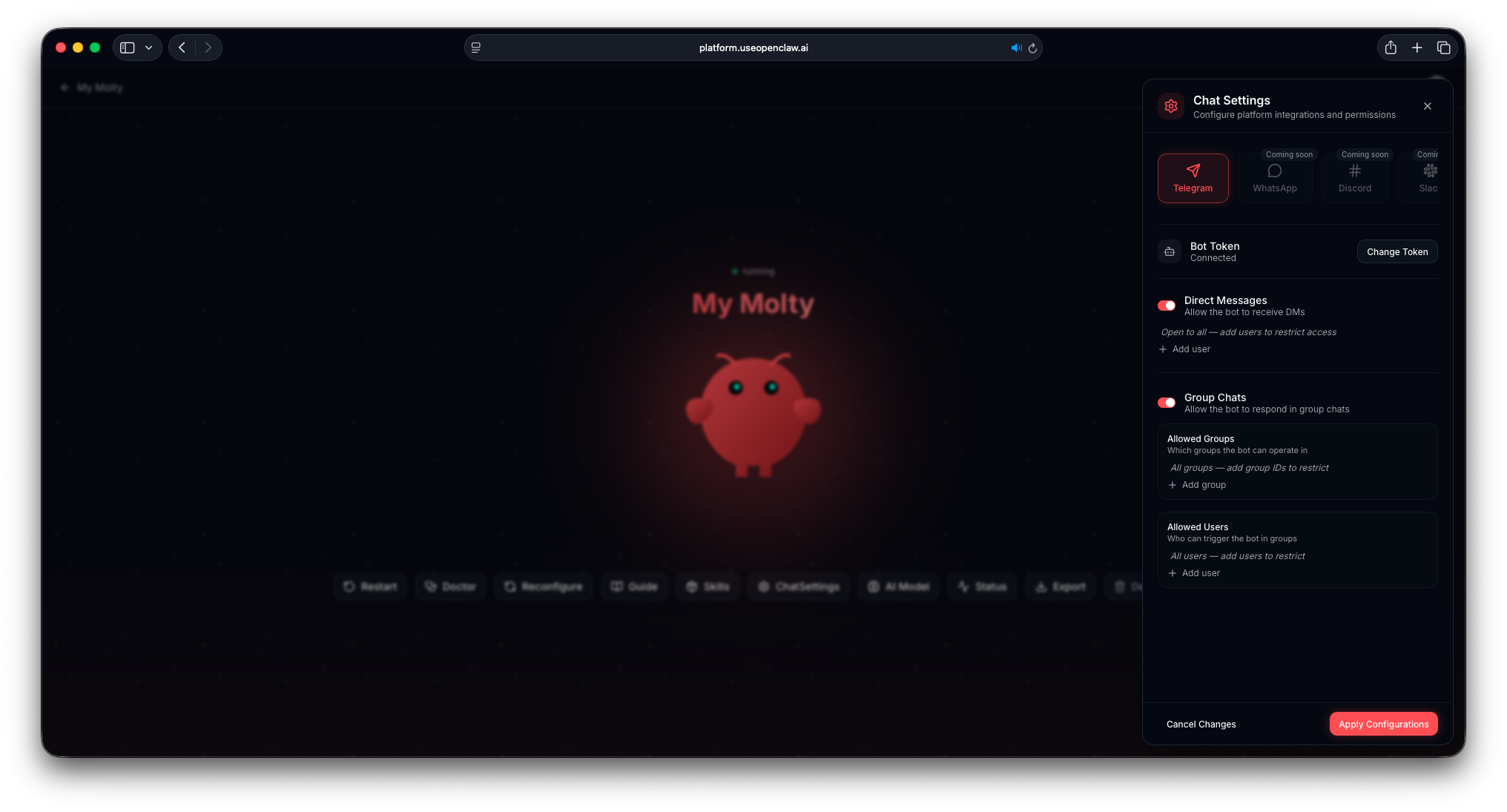
You can configure group chats from your bot’s page — click the Chat Settings button (Settings icon) in the action bar, then scroll to the Group Chats section.
Getting Your Group ID
Before adding a group to UseOpenClaw, you’ll need the group’s ID.
Method 1: Using a Helper Bot (Easiest)
- Open your Telegram group and go to Add Members
- Search for @myidbot (or @getidsbot or @RawDataBot) and add it to the group
- In the group chat, send the command:
/getgroupid@myidbot- The bot will reply with your group ID (e.g.,
-100xxxxxxxxx) - Copy the group ID — you can remove the helper bot from the group afterward
Method 2: Using Telegram Web (No Bots)
- Log in to Telegram Web
- Click on the group chat you want to identify
- Look at the URL in your browser’s address bar — it will look like:
https://web.telegram.org/k/#-123456789- The group ID is the number after the
#(e.g.,-123456789)
Adding the Group
- From your bot’s page, click the Chat Settings button (Settings icon) in the action bar
- Under Group Chats, enable group access
- Add your group ID to the allowed groups list
- Save your changes
Once added, your bot will start responding in that group when mentioned.
How Interaction Works
In group chats, your bot only responds when tagged directly. For example:
@my_assistant_bot what's the weather today?This prevents the bot from interfering with normal group conversations.
Group Allowed Users
Group chats have their own user permission layer, separate from direct message settings.
Full-Access Users
Users who are already on the DM allowed users list automatically have full access in groups. They can use all features, including running commands and tools.
Group-Specific Users
You can add additional users under the group chats allowed users setting. These users can chat with the bot in groups but operate with restricted privileges:
- They can ask questions and have conversations
- They cannot run destructive commands — such as operations that delete data, kill processes, or modify critical configurations
- They cannot trigger certain administrative tools or system-level operations
This distinction lets you open up your bot to more group members while keeping sensitive operations locked to trusted users.
Enabling Group Allowed Users
- From your bot’s page, click the Chat Settings button (Settings icon) → navigate to the Group Chats section
- Toggle on the allowed users setting
- Add Telegram usernames for the users you want to grant group access
Users not on either list (DM allowed or group allowed) will not be able to interact with the bot in the group, even if they tag it.